Online Recreation Programs & Bookings

As of 2024, the Parks & Recreation Department have moved its services to an online program, ActiveNET!

You can now reserve ice time, register for programs, and book your favourite campsite all in one place!

Commonly Asked Questions

Before you can register for programs or book facilities, you must set up an ActiveNET account.

Steps to create your account:

  1. Go to the Pembroke ActiveNET portal by clicking here.

  2. Click “Create an Account” (usually at the top right of the page).

  3. Enter your email address — this will be your login name.

  4. Fill in required personal information (name, address, phone, etc.).

  5. Create a secure password and confirm it.

  6. Agree to Terms & Conditions (if prompted).

  7. Submit the form and check your email for an activation link — click it to activate your account.

  8. Once activated, log in with your email and password.

Tip: If you are looking to register your child to a program, you will need to create a separate account for them. Follow "How to add a family member to your ActiveNET Account" for more information.
 

Adding family members allows you to register children or other household members for programs and activities using one account and one payment method.

Before you begin

  • You must already have an ActiveNET account

  • You must be logged in to your account

Steps to Add a Family Member

  1. Log in to Pembroke’s ActiveNET portal by clicking here.

  2. Click “Sign In” at the top of the page (if you are not already logged in).

  3. Once logged in, select “My Account” from the main menu or your profile icon.

  4. Click “Household & Family” (sometimes listed as “Household Members”).

  5. Select “Add Family Member” or “Add New Member.”

  6. Enter the required information for the family member, including:

    • First and last name

    • Date of birth

    • Gender (if required)

    • Relationship to account holder (e.g., child, spouse)

  7. Complete any additional required fields (such as medical or emergency information, if prompted).

  8. Click “Save” or “Add Member.”

  9. The family member will now appear in your household list and can be selected during program registration or facility bookings.

After Adding a Family Member

  • When registering for a program, you will be prompted to choose which household member the registration applies to.

  • You can add multiple family members to one account.

  • You can edit or update family member information at any time under My Account → Household & Family.

Important Notes

  • Programs have age restrictions, so ensure birthdates are entered correctly.

  • Some programs may require proof of age or residency.

  • If you accidentally create a duplicate account or duplicate family member, contact Parks & Recreation staff for assistance.

Once you’re logged in, here’s how to find and register for a program:

  1. Log in to your ActiveNET account by clicking here.

  2. From the main menu, hover over the "Activities" drop down menu. 

  3. Choose the appropriate category, between Summer Programs, Fall Programs, Winter Programs and Aquatics
  4. Search or browse for the program you want (you can use filters or keywords).

  5. When you find the program, click “Enroll Now”. You can also click on the activity, to learn more about it.

  6. If prompted, select the participant (yourself or a family member).

  7. Answer any required questions for the registration.

  8. Review your selections in the shopping cart.

  9. Proceed to checkout and enter your payment details (credit card).

  10. After payment, you’ll receive a confirmation email / receipt.

Note: Some programs may allow adding participants in a single transaction (e.g., multiple family members).

Through Pembroke's online registration system, you can book a campground spot, ice time, or pool time!

  1. Log in to your ActiveNET account.

  2. Click "Reservations" in the main navigation to open the facility booking page.

  3. Search for a facility by name, category, or location (e.g., Ice, Pool, Campground...).

  4. Choose a date and time slot based on availability.

  5. Complete the booking form with required event details (e.g., purpose, number of participants).

  6. Add the reservation to your cart and proceed to checkout.

  7. Pay the reservation fees online.

  8. You will receive an automated email once the booking is complete.

Please note, some facility reservations may be pending approval by staff. Allow 3-5 business days for confirmation of your booking.

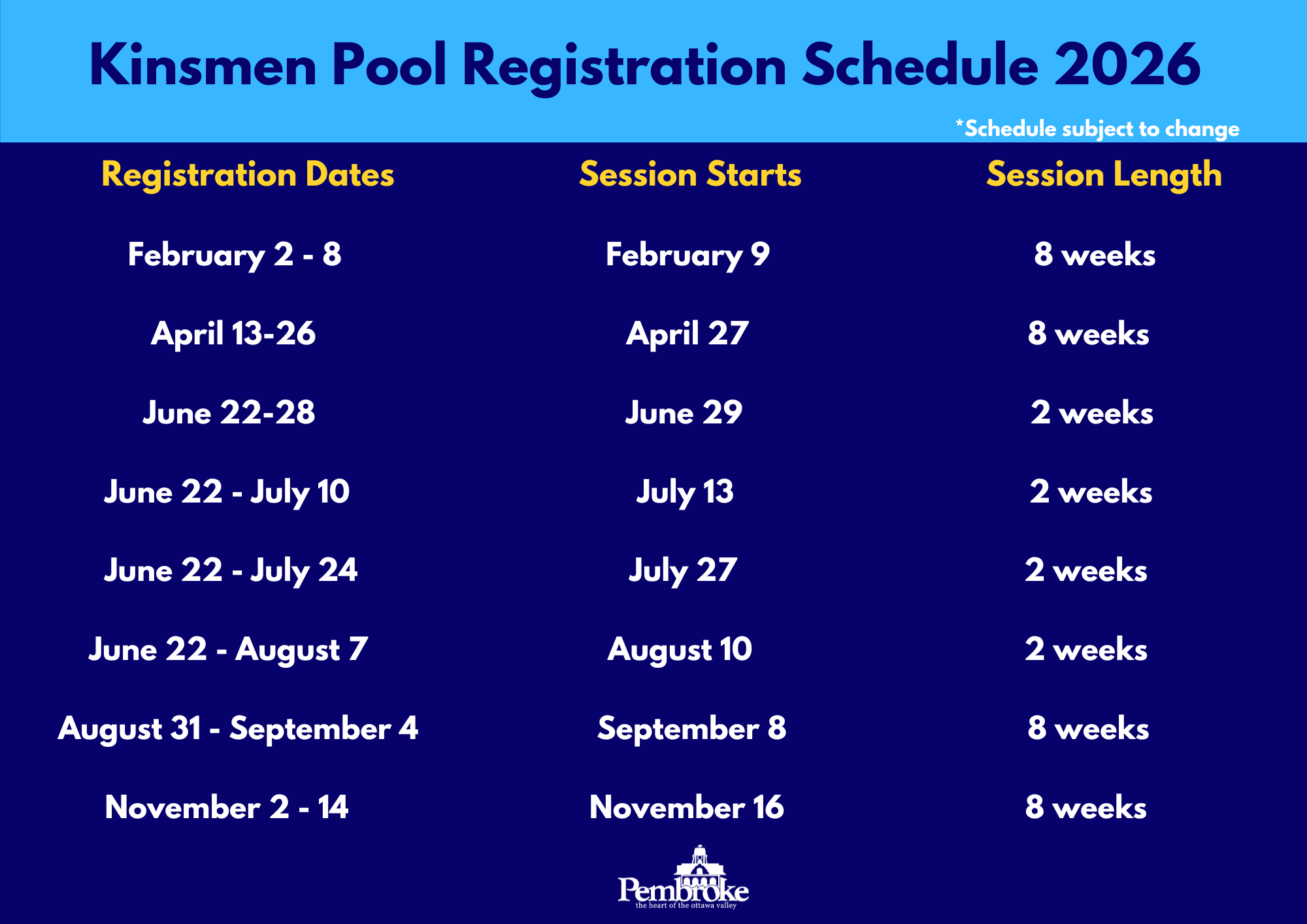
Please note that most of our operations are seasonal. Please refer to the follow table for online registration and booking dates.

Program/Facility Season Online Registration Opens
Riverside Campground May Long Weekend - October Long Weekend The first Monday in May, at 9:00am
PMC & PACC Ice September - April After Thanksgiving Weekend*
Pool Bookings Year Round Year Round
Craft Nights September - April Two intakes in September and January.
Swimming Lessons Year Round A week before program start date. Please visit our registration schedule for our upcoming registration days!

*Please note that ice bookings can be made before this time by contacting our Facility Booking Coordinator.

General ActiveNET Questions

Email: recreation@pembroke.ca

Phone: 613-735-6821 ext. 1501


Recreation Programmer

Email: recreation@pembroke.ca

Phone: 613-735-6821 ext. 1507


Facility Booking Coordinator

Email: bookings@pembroke.ca

Phone: 613-735-6821 ext. 1510


Kinsmen Pool

Email: pool@pembroke.ca

Phone: 613-735-6821 ext. 1506

Contact Us

City of Pembroke
1 Pembroke St. E.
Pembroke, ON
K8A 3J5

Telephone: 613-735-6821
Fax: 613-735-3660